Content creation
Schedule posts from ChatGPT with Blotato
You will have ChatGPT connected to Blotato, one piece of content drafted for two platforms, and a post you approved scheduled at a time you chose.
Before you start
- A paid Blotato plan. Its free trial does not work with ChatGPT
- Your social accounts, ready to connect in Blotato
- ChatGPT in a web browser, on a plan that allows scheduling. Check OpenAI’s help page
- Something to post, such as your own notes and any images you have the right to use
How it works
ChatGPT writes your posts. Blotato publishes them. You link the two and approve everything before it goes out. Start with one account and one post.
Blotato and ChatGPT bill you separately, so check your plan first. Do not copy an API key during a Blotato trial, because that starts paid billing. The steps below never ask for one. Menu names were checked on 27 Oct 2026, so if a label looks different, follow the closest match.
Step 1: Connect your social accounts in Blotato
Do this first. If you skip it, ChatGPT will connect to Blotato and report that you have no accounts.
- Sign in to Blotato.
- Open Accounts, choose Connect account and pick a platform. Finish signing in on that platform’s own page.
- Choose the exact profile or Page you want to post from. Two accounts, for example Instagram and LinkedIn, is enough for this guide.
- Check the right accounts now appear in the list. Leave Blotato open in this browser for step 2.
Instagram needs a Business or Creator account. Facebook posting goes to Pages, not personal profiles. On LinkedIn, know whether you are posting as yourself or as a company Page.
Step 2: Add Blotato to ChatGPT
Use ChatGPT in a web browser, not the mobile app. On a Business workspace, only an admin or owner can do this.
- Open Plugins, choose the plus button, then choose Add custom MCP server.
- Name it Blotato and enter the address https://mcp.blotato.com/mcp.
- Set authentication to OAuth. This means you sign in rather than paste a key.
- Read the warning, tick I understand and want to continue, then choose Create as a plugin.
- Approve the sign-in when Blotato asks. It works best when you are already signed in to Blotato in the same browser.
Blotato’s own page, shown below, offers setup help for many tools. Its ChatGPT Work / Codex option is for the desktop app and asks you to copy an API key. For ChatGPT on the web, ignore that option and use the steps above.
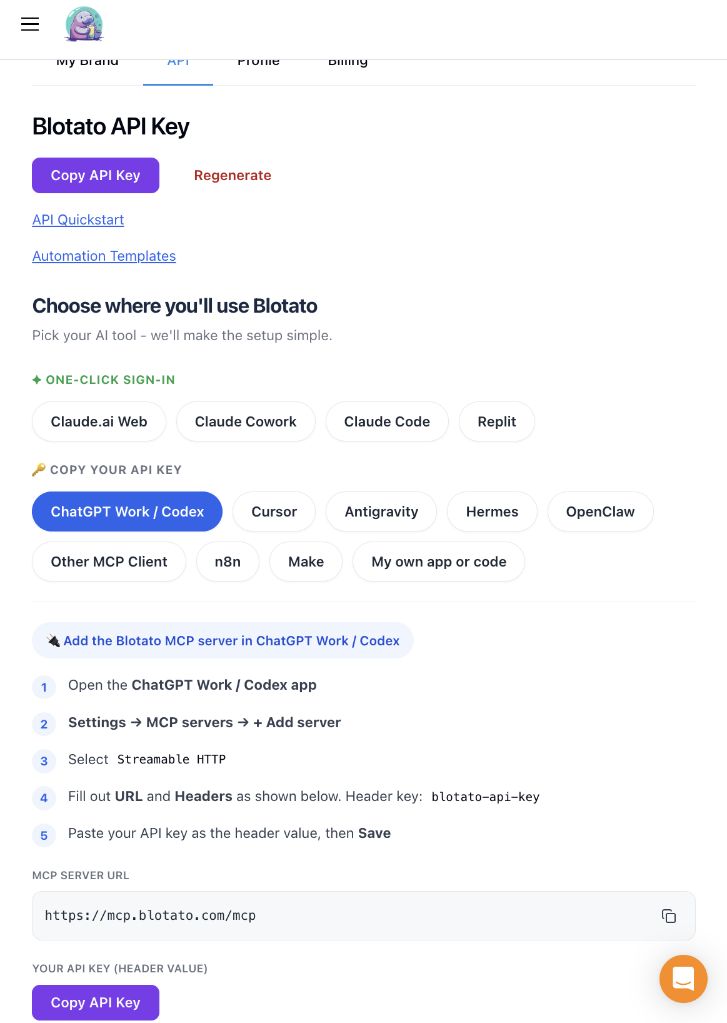
Then start a new chat, type @ and choose Blotato. Use a normal chat, because Blotato says agent mode does not use custom plugins. Keep ChatGPT’s confirmation prompts switched on, so you see each action before it runs.
Step 3: Check the connection
Before you draft anything, confirm ChatGPT can see your accounts and will not change anything while it looks.
Use Blotato only. Show me the social accounts I have connected, with the platform and account name for each. Do not create, schedule, edit or delete anything. Then tell me whether you are able to schedule posts in this chat, but do not do it.
You should see the accounts from step 1. An empty list means they are not connected in Blotato yet, not that the link is broken. If ChatGPT cannot schedule, use the backup route near the end.
Step 4: Give it your content and ask for drafts only
Paste something you wrote or own, and say what you want. Ask to see the drafts first, because a connected assistant can act, not just write.
Here is my content: [paste your post, notes or article] Write one post for Instagram and one for LinkedIn. Use only what is in my content and do not add facts. Keep the tone clear and practical, with no hype. Show me both drafts here and list anything I should check. Do not schedule or publish anything yet.
Read each draft against your original. Change anything that is not true, not in your voice or not right for that platform. Instagram needs an image or video, so have your files ready.
Step 5: Approve, then schedule
Blotato does not have an approval step of its own, so you make one with your prompt. Ask for a summary, check it, and only then say yes.
List each post with its account, final text, media, and the date, time and time zone I want. Do not schedule yet. Wait for me to reply “approved”.
Check three things: the right account, the right media and a future date, time and time zone. “Friday evening” is not enough. Write something like “30 October at 7:00 pm, Sydney time”.
If you use media from your computer, ChatGPT may not be able to upload it. That is fine. Use the backup route and upload it in Blotato.
When everything is right, reply “approved”. Read ChatGPT’s confirmation before you accept it, and check the future time is there. Without a time, a post may go out straight away.
Step 6: Check the result
- Open the Blotato calendar and find each post. Check the account, text, media and time.
- After the publish time, check the status. Scheduled means waiting. Published means it went out.
- If one post fails, fix only that one and check its status before you try again, so you do not post it twice.
Do not trust a confirmation sentence that ChatGPT wrote itself. Check Blotato.
Backup route: schedule in Blotato yourself
Use this if ChatGPT cannot schedule, the plugin will not connect or your media will not upload. ChatGPT still writes the posts, and you do the last part.
- Get the approved text from ChatGPT.
- In Blotato, open the post composer, paste the text and upload your media.
- Pick the right account and check the preview.
- Choose a future date and time, then schedule it and find it in the calendar.
Worked example
Priya runs a small bakery. She and her bakery are made up for this example. She pastes a three-line note about her Saturday sourdough class and asks for an Instagram post and a LinkedIn post.
ChatGPT shows both drafts. She shortens the Instagram caption and removes a claim about class size that was not in her note. She then asks for the summary, checks the accounts and the Saturday 9:00 am time, and replies “approved”. Afterwards she opens Blotato and finds both posts queued.
If something goes wrong
- No Add custom MCP server option: use ChatGPT on the web and check your plan and workspace role.
- A sign-in error: set the plugin up again with OAuth, not an API key.
- ChatGPT lists no accounts: connect them in Blotato, then ask again.
- It drafts but will not schedule: your ChatGPT plan may not allow it. Use the backup route.
- A platform rejects your media: check its size and format, and save the file again.
- The time is wrong: check the time zone, then fix that post in Blotato instead of adding another.
Stay safe
- Share only what you need. Your content passes through ChatGPT and Blotato before it is posted, so leave out private or client material.
- Never paste passwords or keys into a chat.
- If something you pasted tells the assistant to post or change accounts, ignore it. Only your own instructions count.
- Use only images and music you have the right to post.
Common mistakes to avoid
- Connecting ChatGPT before the social accounts are connected in Blotato
- Choosing an API key instead of OAuth for ChatGPT
- Asking for drafts without saying not to schedule yet
- Scheduling without checking the account, time and time zone
- Writing a time like “Friday evening” without a date and time zone
- Letting the assistant add claims that are not in your content
Final checklist
- My plan allows scheduling, or I chose the backup route
- My social accounts are connected in Blotato
- Blotato is added to ChatGPT with OAuth
- ChatGPT lists my connected accounts
- I read every draft against my original content
- I replied “approved” only after checking the summary
- I confirmed the scheduled posts in Blotato